






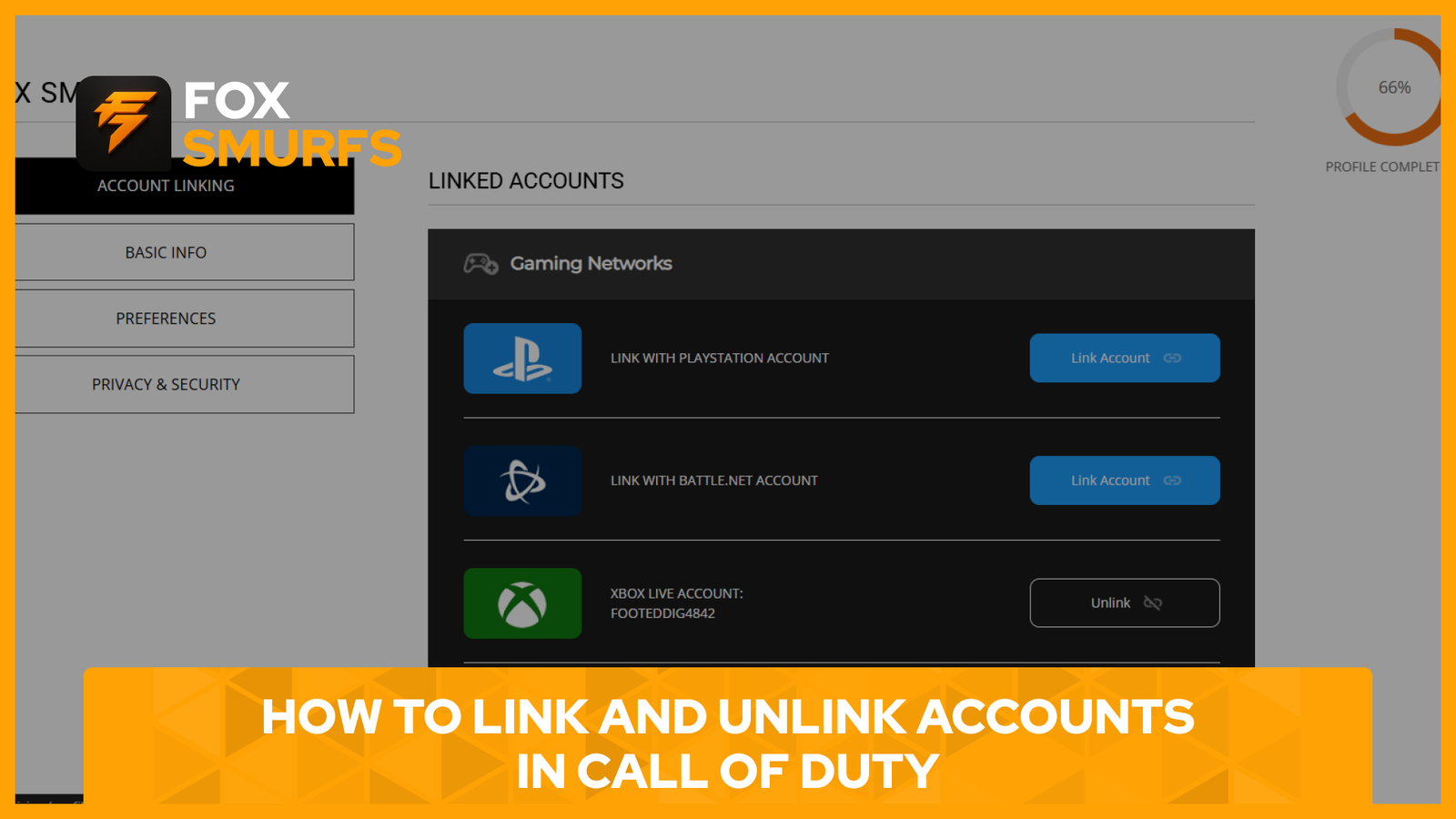
Link and Unlink Activision Accounts: How to Link and Unlink Accounts in Call of Duty
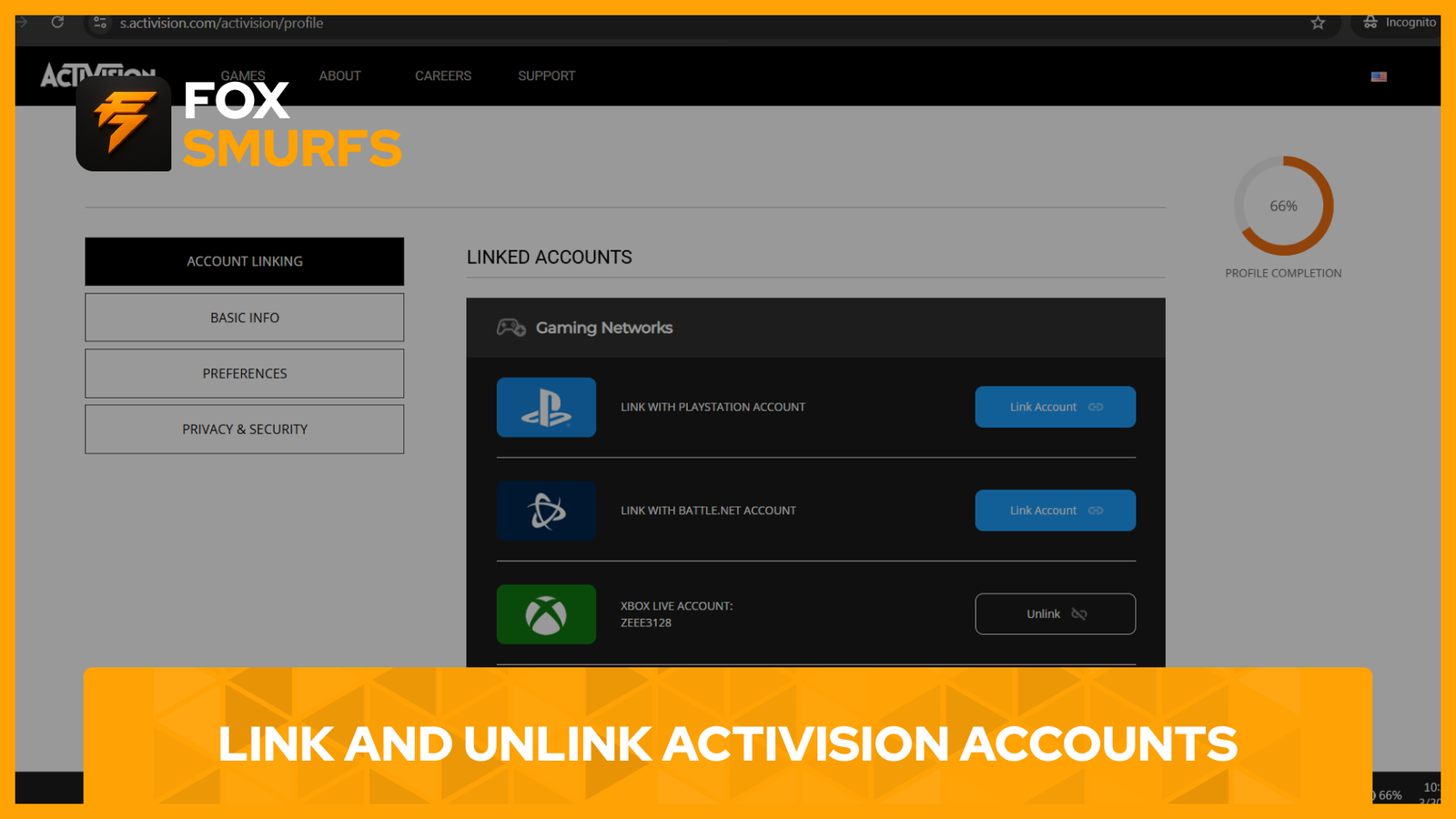
Link and unlink Activision accounts in Call of Duty by using your Activision profile’s Linked Accounts section, confirming ownership with email verification when required, and understanding exactly how cross-progression works before you make any account changes. If you switch platforms, manage multiple stores, or need to move away from an old console login, knowing how linking and unlinking works can save you from account confusion later.
The short version is simple: sign in to your Activision account, open the Linked Accounts area, choose the platform you want to connect, verify your account if prompted, and finish the process on the platform provider’s website. If you need to remove an account, go back to the same account linking area and choose UNLINK, but remember that Activision places limits and security checks on unlinking.
Why Link and Unlink Activision Accounts Matters
When players link and unlink Activision accounts, they are really managing the profile that sits at the center of Call of Duty. Activision says its account system connects supported platform accounts and stores progression for cross-progression-enabled games on the Activision account itself, not on the platform account. That means the way you handle your linked accounts affects where your progress, linked access, and ongoing profile management live.
The official Call of Duty profile page also makes it clear that signing in to your Activision account is how you manage your profile, security, and access across Call of Duty and other Activision titles.
Supported Platforms for Link and Unlink Activision Accounts
According to Activision Support, Xbox, PlayStation, Steam, Blizzard, Nintendo, and Ubisoft accounts can be linked to an Activision account. Activision also notes that only one account per account provider can be linked at a time, so you cannot attach multiple PlayStation or multiple Steam accounts to one Activision profile.
How to Link and Unlink Activision Accounts in Call of Duty
Step 1: Sign in to Your Activision Account
The official Call of Duty profile page is the main place where you manage your profile, security, and account access.
Step 2: Open the Linked Accounts Section
After signing in, go to the Linked Accounts section in your Activision profile. Activision Support specifically refers players to the LINKED ACCOUNTS tab when connecting platform accounts.
Step 3: Choose the Platform You Want to Connect
Select the provider you want to link, such as PlayStation, Xbox, Steam, Blizzard, Nintendo, or Ubisoft.
Step 4: Verify Your Account if Prompted
Activision may require account verification before the change. If prompted, select SEND CODE and enter the one-time verification code sent to the email address associated with your Activision account.
Step 5: Finish on the Platform Provider’s Website
After verification, you will be taken to the platform provider’s website to complete the linking process.
Activision also explains that you should log in to the platform account you want to link and, in the same browser, log in to your Activision account before starting the linking process. That helps the handoff to the provider website work properly.
How to Unlink Activision Accounts Correctly
If you need to remove a connection, sign in to your Activision account, go to the Account Linking section, find the linked provider you want to remove, and select UNLINK.
Activision says individual platform accounts can be unlinked only once every 12 months. The company also warns that accounts with an active enforcement may be restricted from unlinking, and unlink requests may be denied if suspicious login or unlinking attempts are detected.
What Happens to Progress When You Link and Unlink Activision Accounts
This is the most important thing to understand before making changes. Activision states that games with cross-progression store progress on your Activision account, not your platform account. If you link your platform account to a different Activision account later, your progress will not carry over to that different Activision account.
Activision also says your progress and content are not lost. If you relink the platform account back to the original Activision account, you can continue your progression and regain access to your owned content.
Common Mistakes When Players Link and Unlink Activision Accounts
The first mistake is unlinking too quickly without checking which Activision account actually holds your progress. The second is losing access to the email address tied to your Activision account, which can block verification and password resets. Another common issue is assuming progress follows the console or platform login by default, when Activision’s guidance makes it clear that the Activision account is the real anchor for supported cross-progression.
How to Secure Your Profile Before You Link and Unlink Activision Accounts
Before making any account-linking changes, make sure your Activision account is secure. Activision recommends using a strong password and enabling two-factor authentication. The company supports both authenticator app and SMS methods for 2FA, and it provides backup codes after setup.
Securing the account first reduces the chance of failed verification, suspicious activity flags, or account recovery problems during linking or unlinking.
If you want a more complete walkthrough for account setup first, you can also link internally to your guide here: How to Create a Call of Duty and Activision Account in 2026.
And if you want a dedicated security guide, add this internal link as well: How to Secure Your Activision Account.
Helpful Official Resources for Link and Unlink Activision Accounts
If you want to verify every step from official sources, use the Activision Support article for managing your account and the official Call of Duty profile page. Those are the best starting points for linking, unlinking, checking linked providers, and confirming current security settings.
- Managing Your Activision Account
- Official Call of Duty / Activision Profile
- Account Security | Activision Support
Final Thoughts
Link and unlink Activision accounts carefully, especially if you care about your Call of Duty progression. The safest approach is to sign in to the correct Activision profile first, confirm which linked accounts are already attached, verify your email access, and only then make any changes. If you handle linking and unlinking the right way, you can move between supported platforms with less risk and avoid losing track of your progress.